Web Content Guidelines for Downloadable Documents
Beginning April 2026, Cleveland State University (CSU) is planning to adopt the World Wide Web Consortium's Web Content Accessibility Guidelines (WCAG) 2.1 at Level AA as its official Technical Guidelines. The following guidelines should be used by web editors when adding content to the university website.
Web Pages vs Downloadable Documents (PDF, Word, Excel, PowerPoint)
When deciding to create a web page or use a downloadable file, the choice should depend on how the information should be used. When presenting information electronically, creating a web page should be the first choice. Web pages have the following advantages:
- Web pages are searchable and are indexed by search engines.
- The page can be shared electronically by sending a link to users.
- Information can be edited easily and can be updated quickly.
- Readers can access content across most electronic devices of varying screen sizes.
- Interactive media (such as forms and multimedia) are easily accessible for users.
- Accessibility and usability are priorities.
Downloadable documents should primarily be used for the following reasons:
- Documents that need to be printed and shared among users. Some examples include but not limited to:
- Legal contracts and agreements
- Official reports and whitepapers
- Brochures and flyers that are designed for printed material.
- Archival documents and records
- Forms that require a printed (non-electronic) signature.
- Charts, maps, and large tables.
PDF Guidelines
What is a pdf?
The PDF (Portable Document Format) file format is a file format, created by Adobe, that ensures that documents maintain intended page layouts, fonts, and graphics. This ensures a consistent look across all devices and can be used to share and display documents.
Why use pdfs?
PDFs are a great way to display digital information consistently between devices. They can be used to display documents, spreadsheets, slideshows, eBooks, forms and other digital documents. Unlike Microsoft Word, all users, regardless of software and operating system, can open and download documents for free.
PDFs may contain text, hyperlinks, images, video, and form elements. They can be secured using a password, signed electronically and printed, making these files very versatile.
How do you make pdfs accessible?
To help web editors make PDFs accessible for everyone, including people who use screen readers, keyboard navigation, or other tools, it is always best to start with an accessible source document. These documents can then be exported as a pdf. This can reduce the number of steps needed to remediate the document for accessibility.
There are several tools that CSU students, faculty, and staff can use for checking for PDF accessibility.
Microsoft Word and Similar Modern Word Processors
To make a Word document WCAG 2.1 compliant, we recommend using Word’s Accessibility Assistant by going into the ribbon, clicking on the Review tab and clicking on Check Accessibility.

The following tips should be reviewed for best practices:
Set document properties by clicking on File -> Info
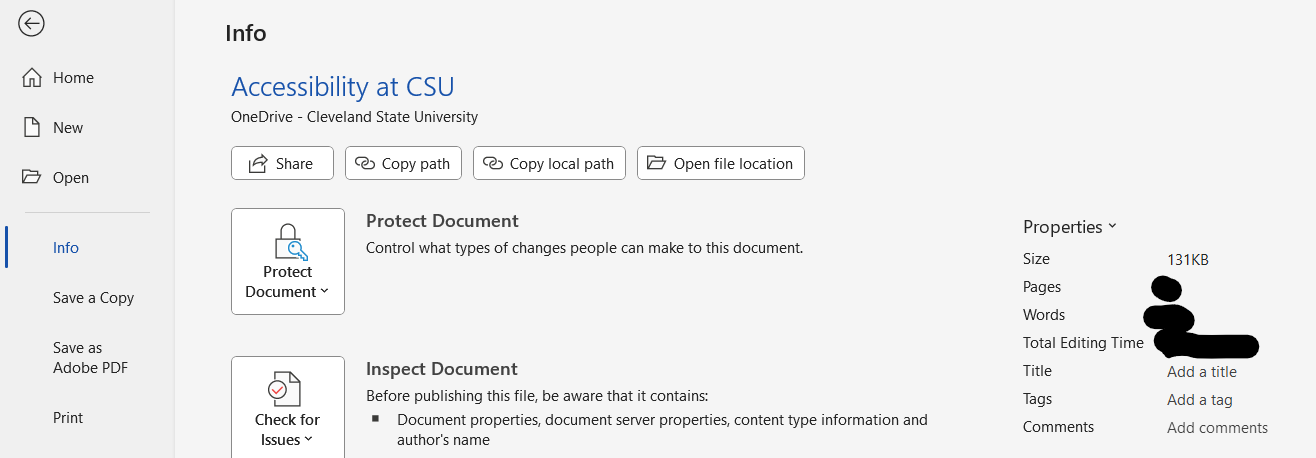
- Title – Add a title
- Tags – Add a tag
Use heading styles correctly. You can access styles by going to the ribbon and clicking on the Home tab and selecting Styles.
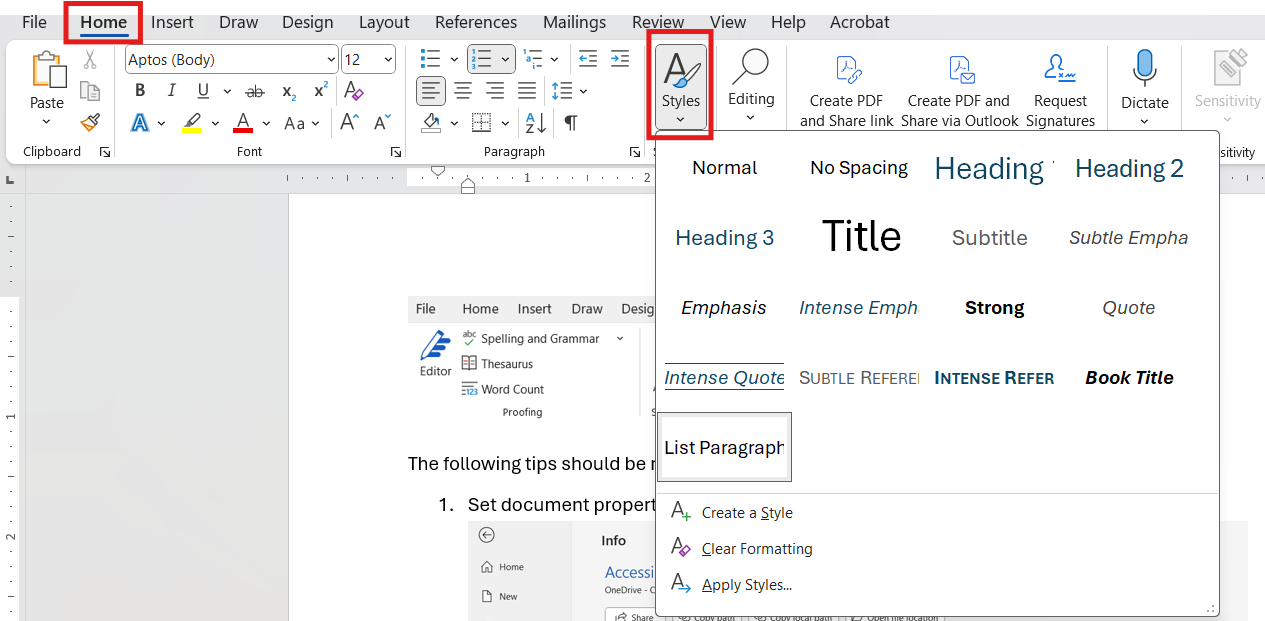
- Apply built-in heading styles instead of manually formatting text and use in the following order:
- Title
- Heading, Heading 2, Heading 3, etc..
- Apply built-in heading styles instead of manually formatting text and use in the following order:
- Review text and structure of the document.
- Use fonts at 12pt or higher.
- Avoid scripting fonts except for icons or decorations.
- Review color contrast to ensure text and background contrast meet WCAG 2.1 AA standards.
Use your Word’s list tools to display ordered/unordered lists. Lists can be viewed by clicking on the ribbon and viewing the section labeled Paragraph.
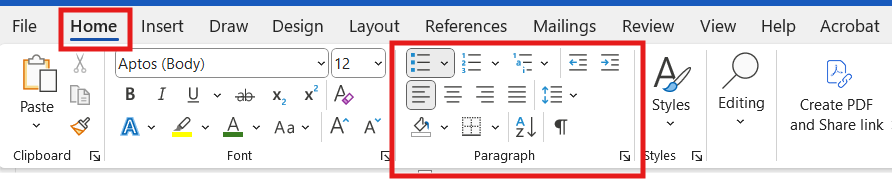
- Tables
- Add header rows to tables. Use headers on the first row only.
- Do not use tables for page or content layouts.
- Review images and media.
- Alt text – Right-click on an image and select Edit Alt Text. Provide meaningful descriptions for non-decorative images.
- Decorative images – Check the box labeled ‘Mark as decorative’ in the Alt Text panel.
- Review hyperlinks.
- Ensure links are underlined or visually distinct.
- Use meaningful text such as “Download the Campus Map” instead of “Click here” or “Download.”
- To avoid losing alternative text when converting your document to PDF, do not use the 'Save as Adobe PDF' option. Instead, use 'Save as' or 'Save a Copy' and select 'PDF (*.pdf)' as the file extension.
Adobe Acrobat Pro
All CSU faculty and staff have access to Adobe Acrobat Pro. Students can use Creative Cloud on all IS&T computers. To access Acrobat Pro, please review CSU’s guidelines for Adobe Creative Cloud Suite through Information Services and Technology. PDFs can be checked for accessibility by clicking on the accessibility checker. The accessibility checker can be found by clicking on All Tools -> Prepare for accessibility -> Check for accessibility.
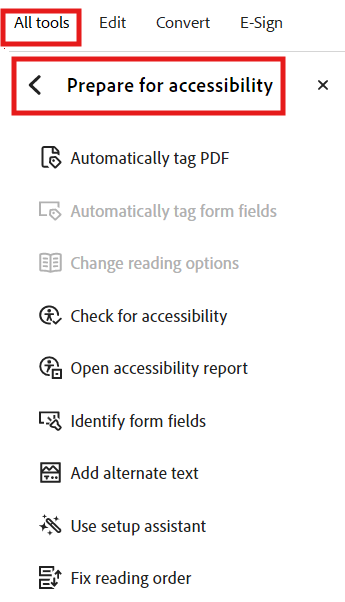
The following tips can be used to make pdfs more accessible:
- Start with an accessible source document. See the section labeled Microsoft Word and similar modern Word processors.
- Run the accessibility checker, review, and fix all issues.
- Add and set document properties.
- Add meaningful title, author, subject and keywords.
- Ensure headings, lists and tables are tagged correctly so screen readers can interpret structure.
- Provide alternative text for images.
- This can be done by selecting All Tools -> Prepare for accessibility -> Add alternative text.
- Mark decorative images as decorative.
- Check reading order. Use the Fix reading order to ensure logical flow for screen readers and keyboard navigation.
- Ensure color contrast. Verify that text and background colors meet accessibility contrast standards for readability.
- Use decorative links. Review images and media.
- Alt text – Right-click on an image and select Edit Alt Text. Provide meaningful descriptions for non-decorative images.
- Decorative images – Check the box labeled ‘Mark as decorative’ in the Alt Text panel.
- Tag tables correctly. Define table headers and structure so screen readers can interpret rows and columns properly.
- Perform manual checks in addition to automated checks. The accessibility checkers are automated tools that will check for accessibility and word processing can auto-generate alt-text but check for accuracy.